MovingBox 2026.3.0 · iOS 27
The best from Apple, now in MovingBox
Use Visual Intelligence to find saved belongings by sight, make lending check-in and check-out faster, and choose how single-item photos are analyzed.
Released: . Available on the App Store.
iOS 27 feature requirements
Apple Intelligence and Visual Intelligence require a compatible device running iOS 27. Feature availability also depends on your device and Apple's services.
See Apple Intelligence requirements and availability on Apple Support
The press kit includes the demo video, screenshots, app icons, and release details.
From camera match to checked out · 16 seconds
Siri Camera finds a saved impact wrench. Its MovingBox record opens, Check Out assigns it to a person, and the tool appears in Lent Items. This demo has no audio.
Download demo · MP4, 2.6 MBWhat's new
New ways to find, catalog, and keep track of what leaves home.
-
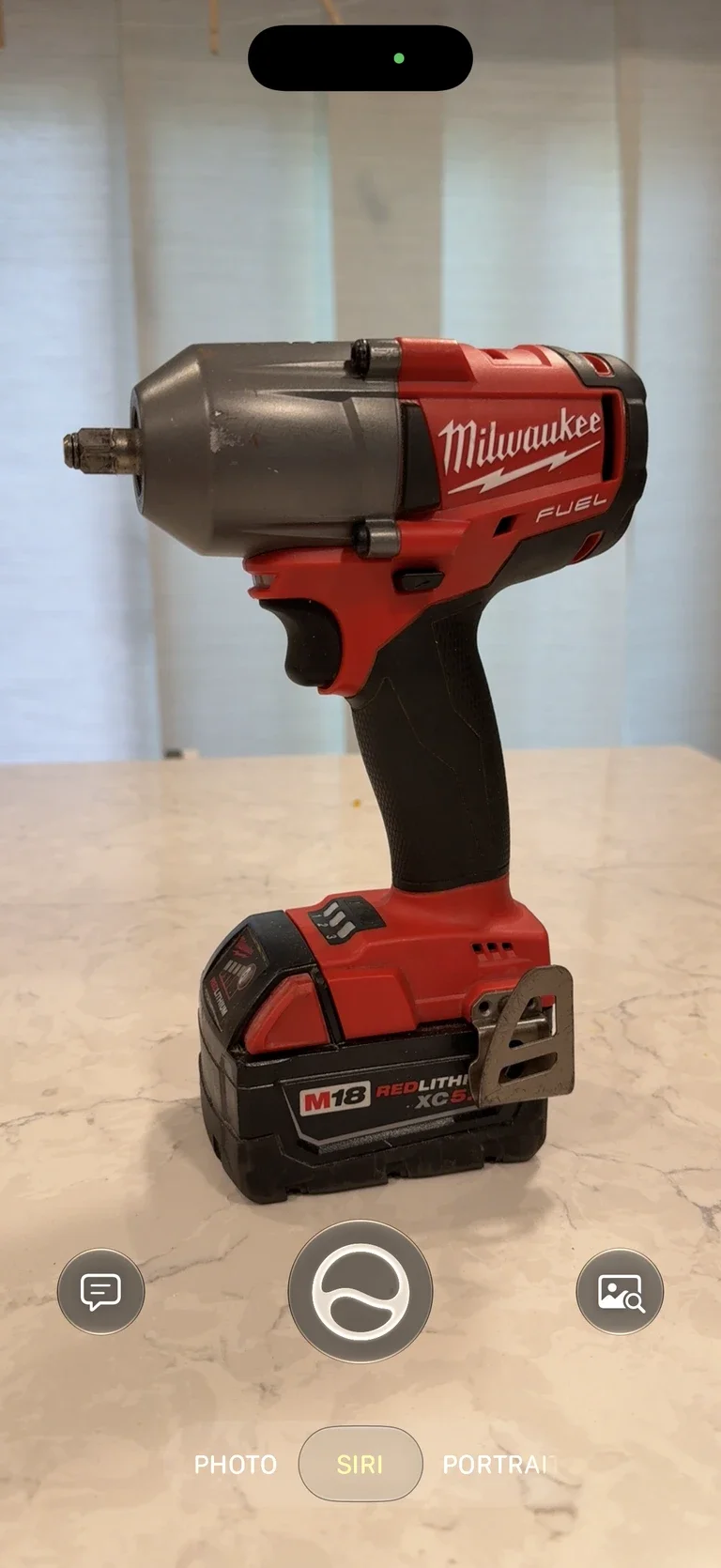
Find items with Siri Camera
Point Siri Camera at a belonging you have already cataloged. When Visual Intelligence finds a confident match against its saved photo, open the MovingBox result to see the item record.
-
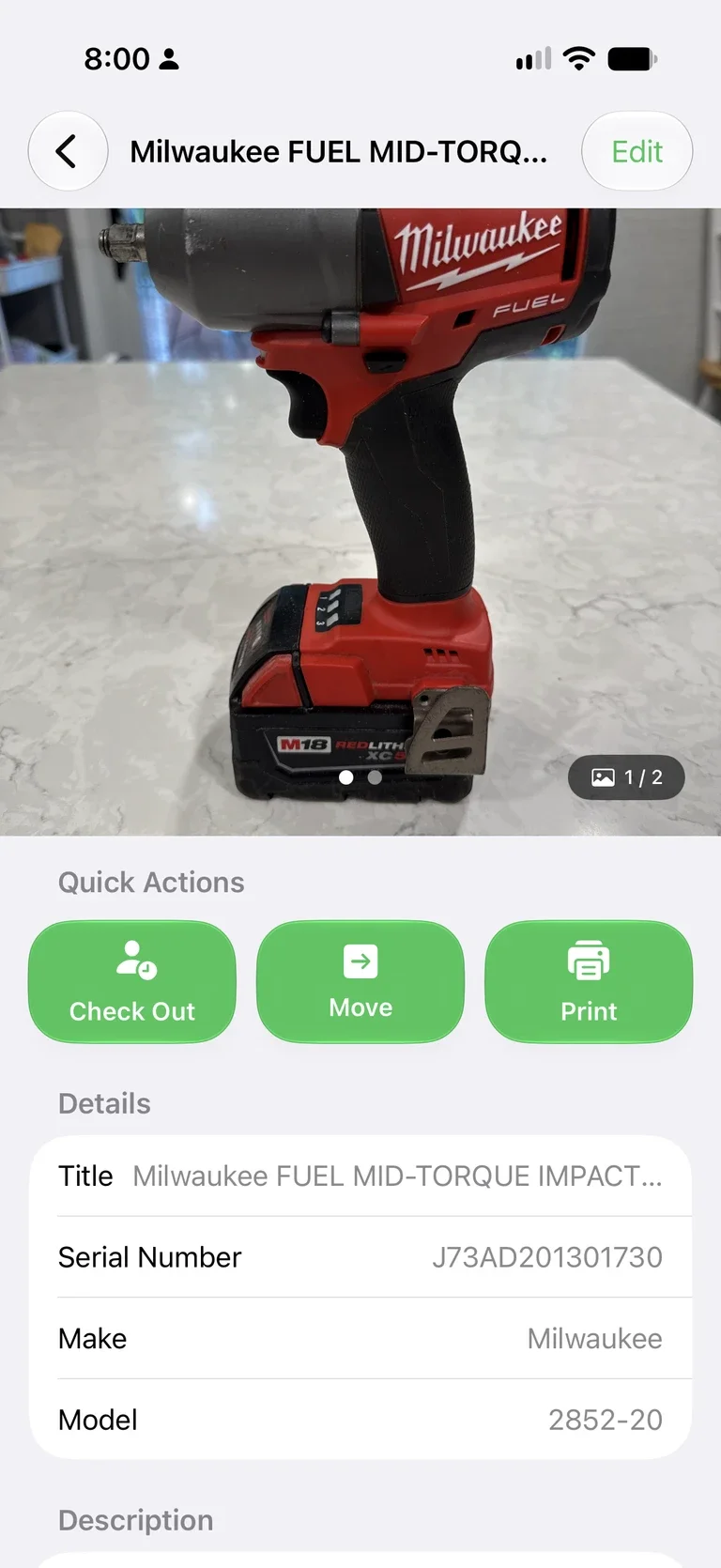
A quicker lending loop
A neighbor wants to borrow a tool. Find it with Siri Camera, open its MovingBox record, and use Check Out to assign it to them. It appears in Lent Items so you can keep track of who has it.
-
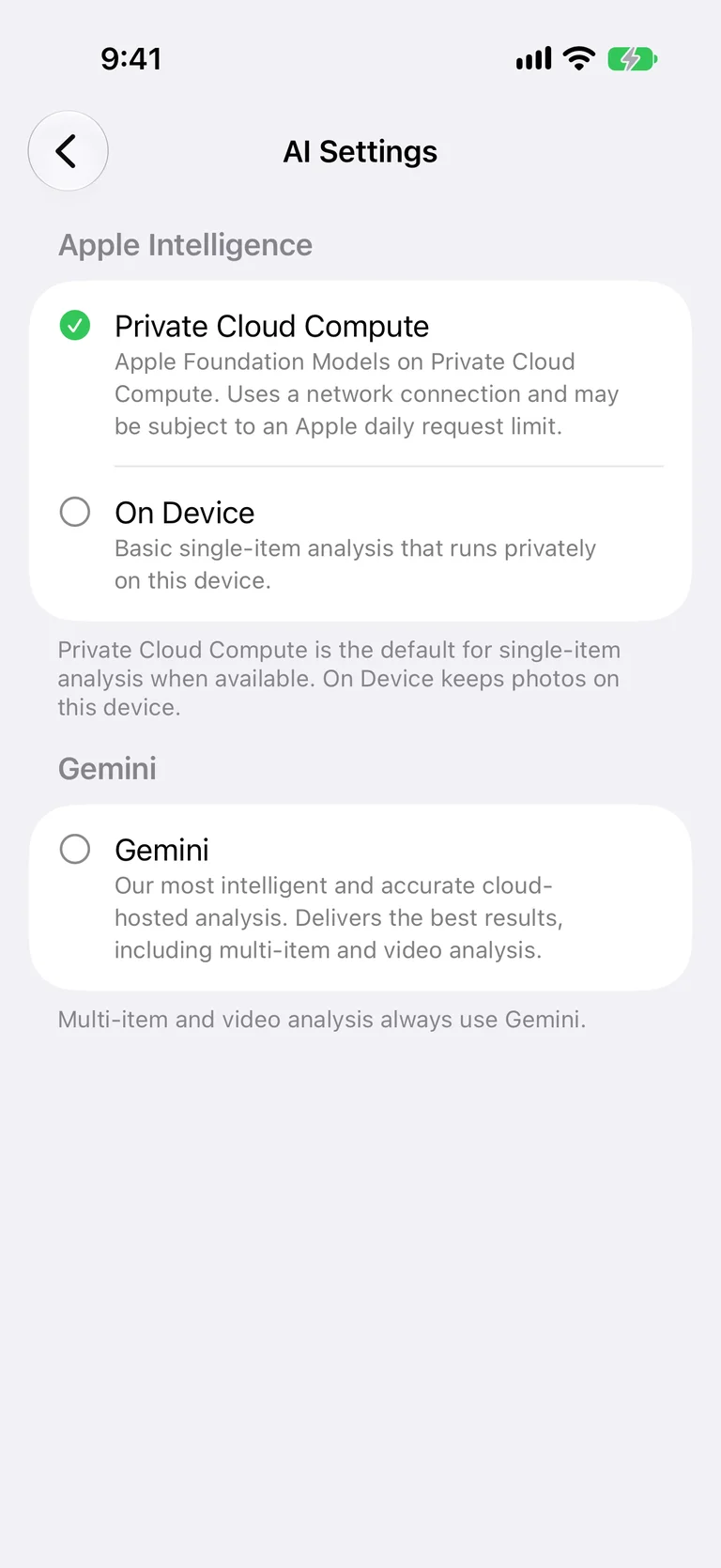
Private AI from Apple
When available, Private Cloud Compute is the default for single-item photos. Choose On Device for local processing or Gemini for cloud-backed analysis. If neither Apple provider is available, single-item analysis uses Gemini.
Multi-item and video analysis use Gemini and require MovingBox Pro.


Try it yourself
A few steps to your first match
-
Install MovingBox
Download MovingBox from the App Store on a compatible iPhone running iOS 27. Open it once to prepare your inventory for system search.
-
Save a familiar item
Add an item with a clear photo, such as a drill or camera. To try single-item analysis with Apple Intelligence, open MovingBox Settings → AI and choose an available provider.
-
Find it by sight
Point Siri Camera at the saved item and select the MovingBox result when a match appears. Use Check Out on the item record to choose a borrower, then find the item in Lent Items.
Results depend on a confident visual match and your device's Visual Intelligence availability. If MovingBox does not appear, check the relevant Siri and Camera permissions in iOS Settings, then open MovingBox again. You can also find the same item using search in MovingBox.
For feedback, review help, promo codes, or an interview, contact Camden Webster.