Locations vs. Labels: How to Organize a Move in MovingBox
Use Spaces and numbered Boxes to track where belongings are, and keep Labels for categories during your move.
- MovingBox Team
- 4 minute read
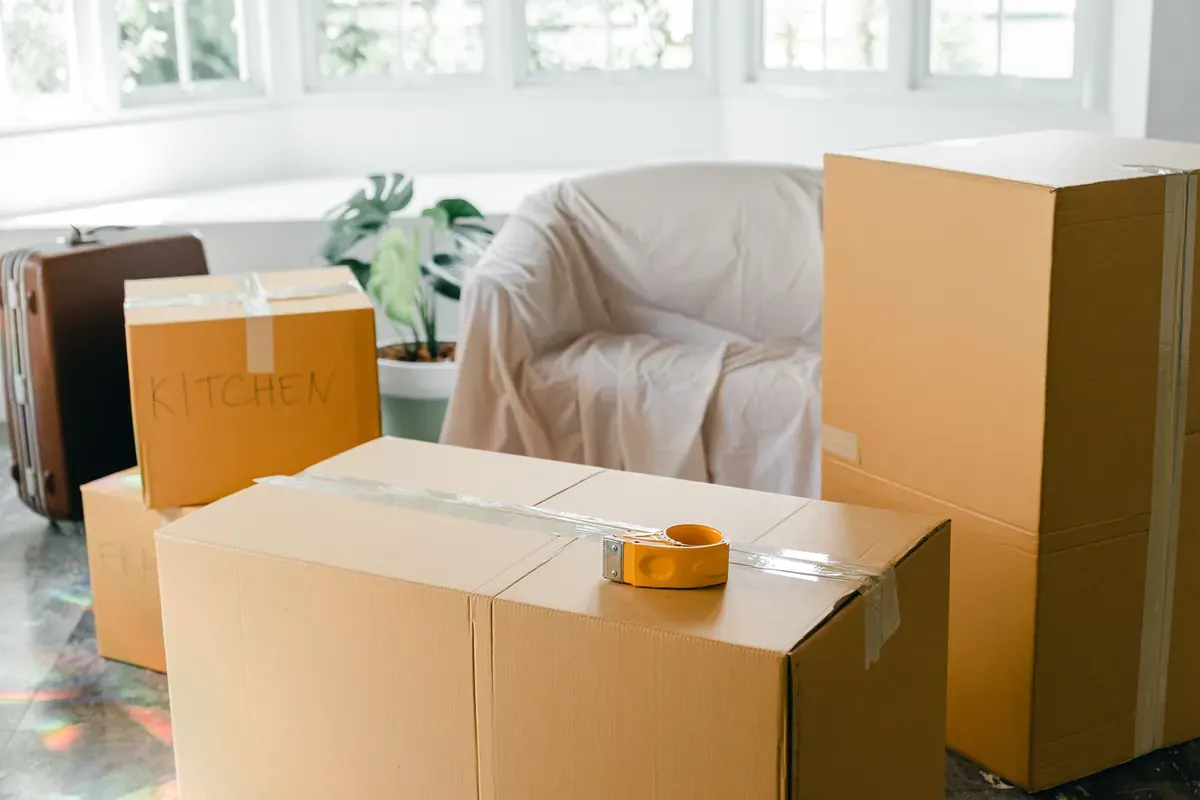
When you are packing, use Spaces for rooms and storage areas, numbered Boxes for packed containers, and Labels for categories such as Electronics or Kitchenware. Spaces and Boxes are the physical locations in MovingBox, so you can record exactly where an item is without using its Label for a box number.
Each item can have only one Label. Assigning the item to a Box leaves that Label available for the category or grouping you find most useful.
The simple difference between Locations and Labels
Think of a location as an answer to “where is this?” In the Locations view, create Spaces such as Kitchen, Garage, or Storage Unit, then put numbered Boxes inside them. Spaces can contain other Spaces and Boxes; a Box holds items, not more Spaces or Boxes.
A Label is a single, flexible grouping that travels with the item. Labels have a name, color, and emoji, and you can use them for item categories, ownership, collections, or another purpose you choose.
| Use this | When you need to answer | Move example |
|---|---|---|
| Space | Which room or storage area is it in? | Kitchen or Storage Unit |
| Box | Which packed container holds it? | Kitchen → Box 12 |
| Label | What category or group does it belong to? | Kitchenware or Electronics |
A practical move setup
Start with Spaces that describe the places you will actually work through. You might create one for each room, plus a Storage Unit or Moving Prep Area if those reflect your situation.
Then add a Box inside the appropriate Space:
- Open the Space, use the add-location button, and choose Box.
- Give the Box a recognizable name and accept or adjust its required Box Number. Numbers must be unique across the Home, even when Boxes are in different Spaces.
- Write that number on the physical box.
- Add items from inside the Box, or edit an existing item’s Location field to assign it to the Box.
For example, your coffee grinder could belong to Home → Kitchen → Box 12 while keeping its Kitchenware Label. Your bookshelf contents might go in Home → Living Room → Box 13; there is no need to restart numbering for every room.
Open a Box and choose the print or share action to create a PDF contents list. It includes the Box name and number, its Home and Space path, assigned items, and a QR code linked to the Box. You can attach the sheet to the physical box and scan the code to open its current inventory. The sheet covers one Box, not a complete inventory report.
Choose your one Label deliberately
Because selecting a new Label replaces the existing one, choose the grouping that helps most across your inventory:
- Use an item category, such as Electronics or Kitchenware.
- Use an ownership group, such as Shared.
- Use a collection name when you want to keep related belongings together.
You do not need to choose between knowing an item’s category and finding its moving box. Its Box assignment records where it is; its Label records the grouping you chose.
Update locations as the move progresses
Keep the inventory connected to the physical move. You can rename or move Spaces and Boxes as storage changes. When you unpack an item, edit its Location and select the Space where it now belongs.
For example, move the coffee grinder out of Box 12 and into the Kitchen Space once it is on the counter. Its Kitchenware Label can stay the same throughout packing and unpacking.
Keep capture and organization separate when needed
You do not have to finish every organizational decision while you are taking photos. MovingBox lets you edit an item later to change its Location, Label, description, notes, and other details. If you use AI photo recognition, review and correct the generated details before saving; manual entry is also available when a photo is not the right fit.
For a move, a small repeatable routine works well: catalog the item, assign it to a Box when you pack it, and update its location after you unpack. The organization guide walks through Spaces, Boxes, Labels, and printable contents lists.
Frequently Asked Questions
Can one item have more than one Label in MovingBox?
No. Each item can have one Label. Selecting a new Label replaces the previous one. Assigning a Space or Box does not use up that Label.
Should I make each moving box a Location instead?
Yes—create a numbered Box inside a Space from the Locations view. Assign its contents directly to it, and reserve Labels for categories or other groupings.
Can I change an item after I pack it?
Yes. Open the item, edit its details, choose a different Space, Box, or Label, and save your changes.