How to Inventory a Storage Unit Without Opening Every Box Later
A practical way to record what goes into storage, then find it later without opening every box.
- MovingBox Team
- 6 minute read
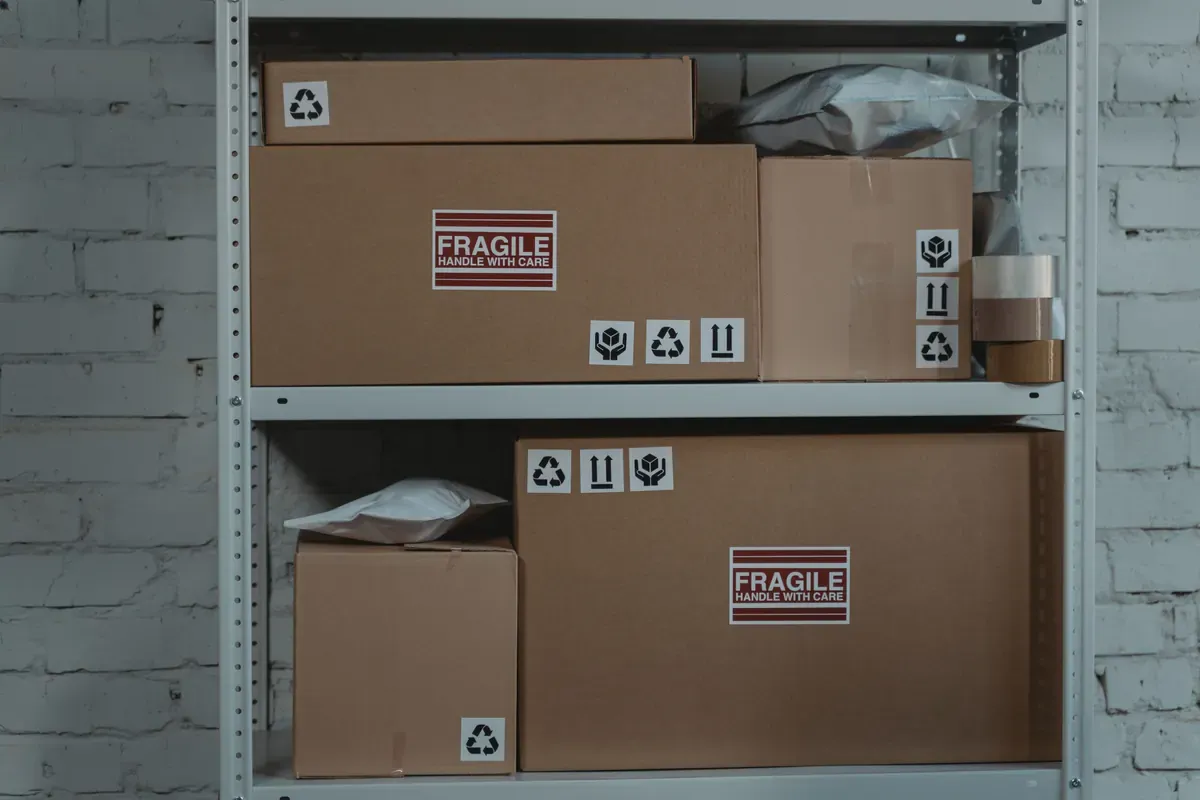
The easiest way to inventory a storage unit is to record items before you seal each box, give every box a unique number, and connect that number to its contents. In MovingBox, create a Space for the storage unit, add numbered Boxes inside it, and assign items directly to each Box. When you need something later, look it up before opening boxes one by one.
Start with a record that answers a simple question: “Which box should I open?” You can add more detail as you go.
Set up a Space for the storage unit
Open Locations in the Home you are organizing and create a Space for the unit. Give it a recognizable name, such as “Northside Storage, Unit 214.”
Spaces describe rooms, closets, and storage areas. They can contain other Spaces and Boxes, so you can add a Back Wall or Shelf A Space inside the unit if that extra detail will help you find things. Keep the structure simple enough to update when the unit changes.
Give every box a unique number
Use one running sequence across the Home instead of restarting at 1 for each category or room. You can pair the number with a descriptive name:
- Box 12 — Kitchen appliances
- Box 13 — Books
- Box 14 — Winter clothes
- Box 15 — Holiday decorations
Inside the storage-unit Space, use the add-location button and choose Box. Enter a name and accept or adjust the required Box Number. MovingBox prevents duplicate Box Numbers within the same Home, including Boxes in other Spaces.
Write the matching number on the physical box. Assign its contents to that Box in MovingBox; there is no need to create a Label for each container. Each item has one Label, which remains available for a category such as Kitchenware or Clothing.
Add items while the box is still open
Work through one box at a time:
- Gather a small group of items you are ready to pack.
- Add those items to MovingBox with a clear photo or manual entry.
- Review and correct the item names and details before saving.
- Select the numbered Box in the item’s Location field, or add the item from inside the Box so that location is preselected.
- Pack the recorded items, then repeat until the box is full.
With MovingBox Pro, a multi-item photo batch can be a convenient starting point for a shelf, drawer, or group of ordinary items. Review every detected item before saving, and add an important or hard-to-identify item separately if it needs a clearer record. Manual entry is available when a photo does not tell the whole story.
Capture the details that make a later search useful
You do not need to document every minor object with the same level of detail. Focus your effort where it will help you decide which box to open later.
Save a recognizable name and a photo. For electronics or branded items, record visible model and serial numbers when useful, then check them against the item. You can update notes, purchase information, and the assigned Space or Box later.
Treat details filled in from a photo as a starting point. Correct names and identifiers before relying on them, and remember that AI value estimates are approximate. The item guide explains photo capture, manual entry, and editing.
Add a contents sheet before sealing the box
Open the Box and choose the print or share action. MovingBox creates a PDF with the Box name and number, its Home and Space path, assigned items, and a QR code linked to that Box.
Print the sheet and attach it to the box, or save the PDF through the iOS share sheet. It covers that one Box rather than your complete inventory. Boxes hold items; if you need another level of storage organization, create a Space instead of putting one Box inside another.
Find a stored item without unpacking the unit
Search your inventory for the item’s name or another recognizable keyword. Open the matching item and check its assigned Box. You can also browse the storage-unit Space and open a Box to review its contents.
If the coffee grinder is assigned to Storage Unit → Box 12 — Kitchen appliances, you know which physical number to look for. At the unit, scan the printed contents sheet’s QR code using MovingBox or the system Camera app to open that Box’s current inventory. The organization guide includes printing and QR-code troubleshooting.
A simple maintenance habit
Any time you add, remove, or repack something, update its assigned Space or Box while the contents are in front of you. If you take the coffee grinder home, move its record to the Space where you put it. If you repack a Box or change its location, print a fresh contents sheet so the paper matches the inventory.
Start with the boxes that would be hardest to search
If the unit is already packed, begin with the boxes you are most likely to open again: seasonal gear, kitchen equipment, hobby supplies, or frequently borrowed items. Inventory them as you open them, then add the rest over time.
A Space for the unit, numbered Boxes, and clear item records give you a practical place to start. Document the next box you pack, attach its number, and keep that connection up to date.
Frequently Asked Questions
Can I start if my storage unit is already packed?
Yes. Start with the boxes you open most often, record their contents while they are open, and assign the items to matching numbered Boxes. Add the remaining boxes as you use them rather than unpacking the entire unit at once.
Should shelves be Spaces or Boxes in MovingBox?
Use a Space for a shelf or section of the storage unit, then place numbered Boxes inside it. A Box holds items and cannot contain another Space or Box.
Does a printed contents sheet update when I move an item?
The paper copy stays as it was when you printed it. Its QR code opens the Box’s current record in MovingBox. Print a fresh sheet after repacking if you also want the written list to match.