A Box Numbering System You Can Still Understand on Moving Day
Use a simple box-numbering system that connects each moving box to its contents, room, and current location.
- MovingBox Team
- 5 minute read
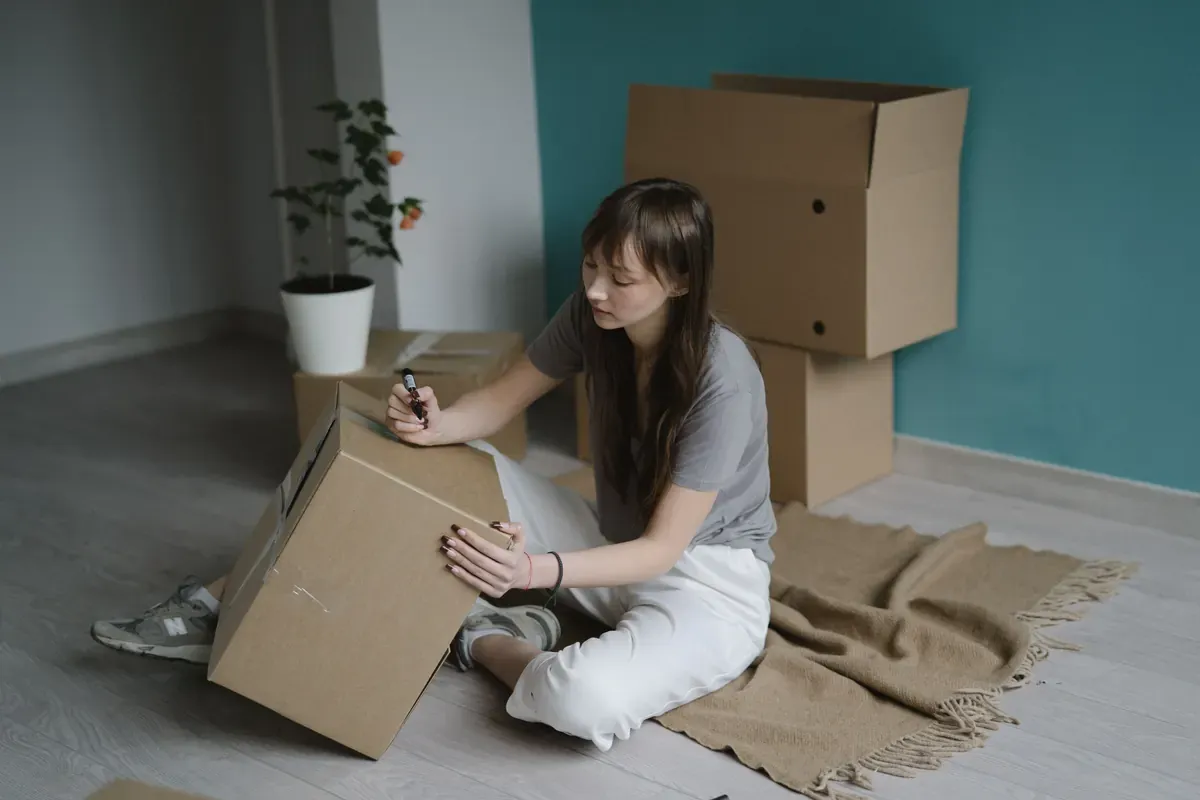
A useful box number is one you can find, read, and use when the day gets busy. Give every box a clear number, keep the number on the box and in your inventory, and record what is inside before you seal it. That simple link lets you look up a box later without opening it.
MovingBox can keep that system together: Boxes live inside Spaces, each Box has a required number, and the app prevents duplicate Box Numbers within the same Home.
Start with one simple numbering rule
Choose a format you will use for every box. The easiest option is a running sequence: Box 1, Box 2, Box 3, and so on. You do not need to make the number carry every detail about the box. Let the inventory hold the details instead.
If you prefer a little more context at a glance, pair the number with the destination Space on the outside of the box. For example:
| On the box | In your inventory |
|---|---|
| Kitchen — Box 12 | Home → Kitchen → Box 12 |
| Main Bedroom — Box 13 | Home → Main Bedroom → Box 13 |
| Basement Storage — Box 14 | Home → Basement → Storage Room → Box 14 |
Keep the number consistent everywhere. Avoid renumbering boxes halfway through packing unless you also update the record in your inventory.
Set up the places before you pack
In MovingBox, Spaces represent places such as rooms, closets, storage areas, or other parts of a home. A Box belongs inside a Space and holds items. Boxes cannot contain other Spaces or Boxes, so create another Space when you need another level of organization.
Start with the physical structure you already recognize. You might create Spaces for Kitchen, Main Bedroom, and Basement, then add numbered Boxes inside each one. This keeps the number attached to a useful path instead of leaving you with a pile of anonymous cartons.
Add each numbered box in MovingBox
When you are ready to pack a box:
- Open the Space where the box belongs.
- Use the add-location button and choose Box.
- Enter a name and accept or adjust the required Box Number.
- Add items from the Box, or move items you have already documented into it.
MovingBox prevents duplicate Box Numbers within the same Home, which gives you one less thing to check while you are labeling tape and cardboard.
Record contents while the box is open
The best time to add an item to a box is before the lid is sealed. You can add items manually or document them with photos, then review and correct the record before saving. For items that matter to you, make sure the saved name and details are useful enough that you will recognize them later.
For a box with several items, focus on clear, practical names rather than trying to write a perfect description for every object. The goal is to answer questions such as “Which box has the coffee maker?” or “Where did the extension cords go?” without unpacking three boxes to find out.
Print a contents sheet for the outside
After you have assigned items, open the Box and choose the print or share action. MovingBox creates a PDF contents list with the Box name and number, its Home and Space path, a QR code linked to that Box, assigned item names, quantities, labels, recorded values, and separate totals for different currencies.
Print the sheet and attach it to the box. It is a contents sheet for that one Box, not a complete inventory or insurance-report PDF. You can also save or share the PDF using the standard iOS Share Sheet.
Use the QR code when you need a quick answer
The printed contents list includes a QR code for the Box. You can scan it from MovingBox’s Box QR shortcut or camera interface; the system Camera app can also recognize it. MovingBox then opens the matching Box, so you can check the live contents record without searching through your full inventory.
If a code does not open, confirm that MovingBox 2026.2.0 or later is installed, make sure the Box still exists, and try better lighting or a little more distance from the printed page.
A small system that stays useful
Your box number is only the handle. The helpful part is the connection between that number, the Space where it belongs, and the items you recorded inside. Keep those three pieces together and your numbering system can stay understandable through packing, moving day, storage, and unpacking.
For the app steps, see the Spaces and Boxes guide. When you are ready, start with the next box you are packing. Add its Space, give it a number you can spot at a glance, and save a contents record before you close the lid.
Frequently Asked Questions
Can two boxes use the same number?
Not within the same Home in MovingBox. The app prevents duplicate Box Numbers in a Home. If you manage more than one Home, keep the Home and Space path visible so you know which box you are viewing.
Should I use Labels for box numbers?
Use numbered Boxes for a box’s physical place and contents. Labels are better for one item category or status, because each item can have only one Label.
Can I use the contents sheet as my full inventory report?
No. A Box contents sheet covers one Box only. Keep your broader inventory up to date separately.